
Automating MikroTik RouterOS and RouterBOOT Firmware Updates with Scheduler Scripts
A practical two-stage automation method for RouterOS packages and RouterBOOT firmware.
Keeping MikroTik devices current is an important part of network security and operational reliability. RouterOS updates can correct published security issues, resolve defects, introduce hardware support, and improve protocol behavior. RouterBOARD devices also have a separate RouterBOOT firmware component that should be reviewed after a RouterOS upgrade.
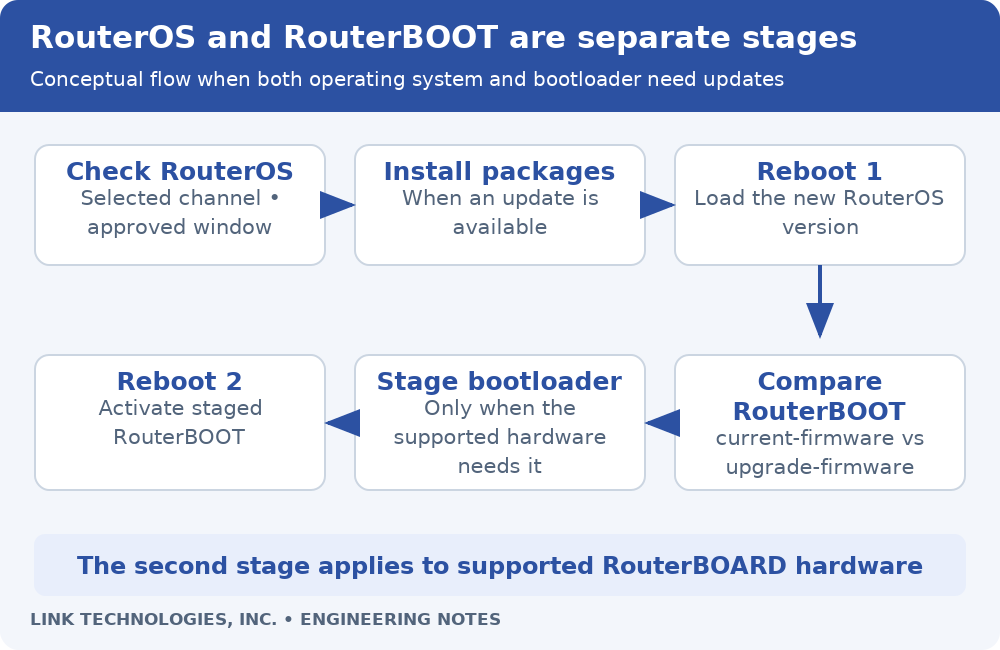
The configuration below automates both parts of the process. The first section checks a selected RouterOS release channel every day and installs a new RouterOS version when one is available. The second section runs after the router starts, compares the currently running RouterBOOT firmware against the version supplied by RouterOS, and upgrades the bootloader when needed.
What the Automation Does
- At the scheduled time, RouterOS contacts MikroTik's update server over HTTPS.
- The router checks the currently selected release channel, such as stable or long-term.
- If the status is
New version is available, RouterOS downloads the appropriate packages and reboots to install them. - After the router comes back online, the startup scheduler checks
current-firmwareagainstupgrade-firmware. - If the versions are different, RouterBOOT is staged, then the router reboots a second time to apply it.
Section One: The Daily RouterOS Update Check
The update script enters the /system package update menu, runs check-for-updates once, waits for the result, and reads the update status. If RouterOS reports that a newer version is available, the install command downloads it and schedules a reboot.
/system script
add name=update-software policy=reboot,read,write,policy,test source={
    /system package update
    check-for-updates once
    :delay 15s
    :if ([get status] = "New version is available") do={
        :log warning "RouterOS update available - downloading and rebooting"
        install
    } else={
        :log info ("RouterOS update check: " . [get status])
    }
}
The original script uses a five-second delay. That often works, but a 15-second delay provides more time for the router to contact the update server and return a complete result, especially across slower or high-latency connections.
The scheduler calls the named script every day at 3:00 AM:
/system scheduler
add name=check-update start-time=03:00:00 interval=1d \
    on-event=update-software policy=reboot,read,write,policy,test \
    comment="Daily RouterOS automatic update check"
Because the scheduler uses interval=1d, the task repeats every 24 hours after its first scheduled run. Confirm that the router has correct time, time zone, DNS resolution, a working default route, and outbound HTTPS access before relying on this automation.
Section Two: RouterBOOT Firmware Upgrade After Startup
RouterOS packages and RouterBOOT are related but separate. A RouterOS release can contain a newer RouterBOOT image, but the bootloader does not become active until it is explicitly upgraded and the router reboots.
The startup scheduler checks two RouterBOARD values:
current-firmware: the RouterBOOT version currently running on the device.upgrade-firmware: the newer RouterBOOT version available from the installed RouterOS package.
/system scheduler
add name=auto-firmware start-time=startup \
    policy=reboot,read,write,policy,test \
    on-event={
        :if ([/system routerboard get current-firmware] != [/system routerboard get upgrade-firmware]) do={
            :log warning "RouterBOOT firmware differs - applying upgrade"
            /system routerboard upgrade
            :delay 10s
            /system reboot
        }
    } \
    comment="Apply pending RouterBOOT firmware after startup"
A scheduler item using start-time=startup runs shortly after RouterOS has started. When no RouterBOOT upgrade is pending, the scheduler exits without making any changes. When a newer bootloader is available, it stages the firmware and reboots so the new version becomes active.
The Original Script Explained
The first three commands remove an existing version of the scheduler entries and update script. This prevents duplicate schedule names or an old script definition from being left behind.
/sys sch rem [find name=check-update]
/sys script rem [find name=update-software]
/sys sch rem [find name=auto-firmware]
The final command manually runs the RouterOS update script immediately. It is useful for testing, but it can trigger an immediate download and reboot if an update is available.
/system script run update-softwareUse the Right Update Channel
The automation installs the newest version offered by the router's configured release channel. Before enabling automatic installation, verify the intended channel:
/system package update printFor many production networks, stable is the normal choice. Some operators use long-term where slower change is preferred. Testing and development channels should be reserved for lab devices, controlled pilots, or situations where a specific release is required.
Built-In RouterBOOT Auto-Upgrade Option
On supported RouterBOARD hardware, RouterOS also provides a built-in setting that can apply RouterBOOT after a RouterOS upgrade and an additional reboot.
/system routerboard settings
set auto-upgrade=yes
This can simplify the bootloader portion of the workflow. The startup scheduler remains useful when an operator wants visible logging, explicit control, or a RouterBOOT comparison at every system startup. CHR, x86, and other non-RouterBOARD installations do not use RouterBOOT in the same way and should not use the RouterBOOT upgrade section.
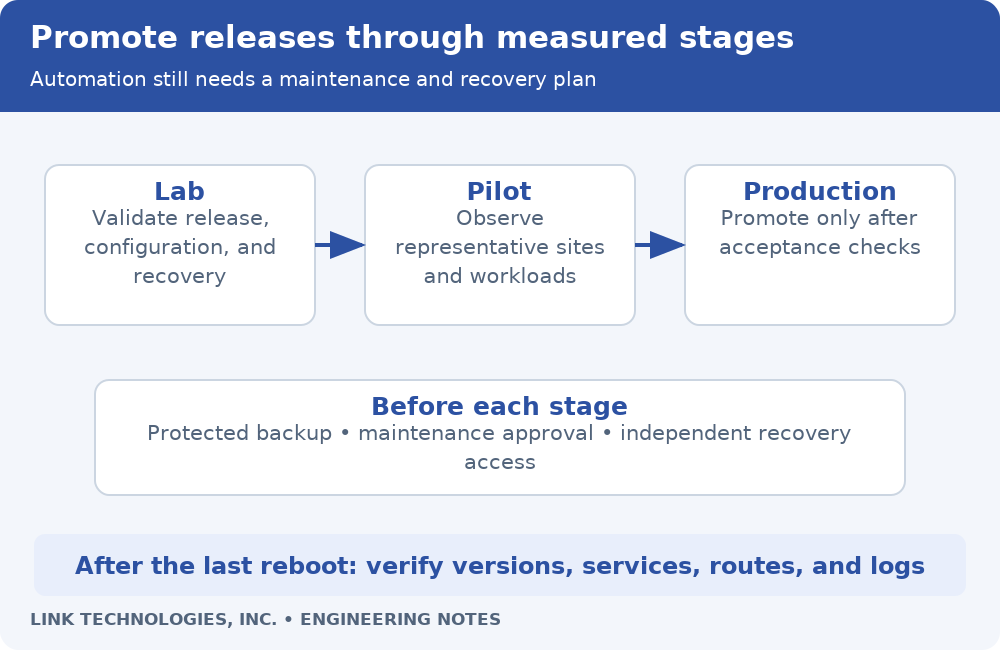
Operational Safeguards Before Enabling Automatic Installation
- Use a maintenance window: Automatic installation can reboot a router without further approval.
- Back up before updating: Keep a current export and an encrypted backup in a protected location.
- Use staged rollouts: Update a lab router or a small pilot group before core, aggregation, BGP, or high-impact devices.
- Review the release channel: The script installs what the configured channel offers.
- Confirm out-of-band access: Have console, LTE, remote hands, or another recovery method for critical sites.
- Use least privilege: The original policy grants broad permissions including sensitive, sniff, password, and romon. Limit script and scheduler policies to only what the automation requires.
- Review logs after each update: Confirm the new RouterOS version and that current RouterBOOT matches upgrade RouterBOOT after the final reboot.
Verification Commands
/system package update print
/system resource print
/system routerboard print
/log print where topics~"system"
After a successful RouterBOOT update and reboot, current-firmware and upgrade-firmware should report the same version.
Need Help Managing MikroTik Updates?
Link Technologies, Inc. helps ISPs, WISPs, enterprises, and hosting providers design reliable RouterOS lifecycle, security, monitoring, and configuration-management processes.
Contact Our Team Explore Our ServicesMikroTik RouterOS Upgrading and Installation
MikroTik Scheduler Documentation
MikroTik RouterBOOT Documentation
Link Technologies, Inc.
IT Infrastructure • Wireless • Fiber • Hosting • Cloud Services
shop.linktechs.net • sales@linktechs.net • 314-735-0270
Leave your comment